
How to find profitable OSRS flips
Checking margin after tax, volume on the side you are trading, four-hour buy limits, and how long an offer takes to fill.
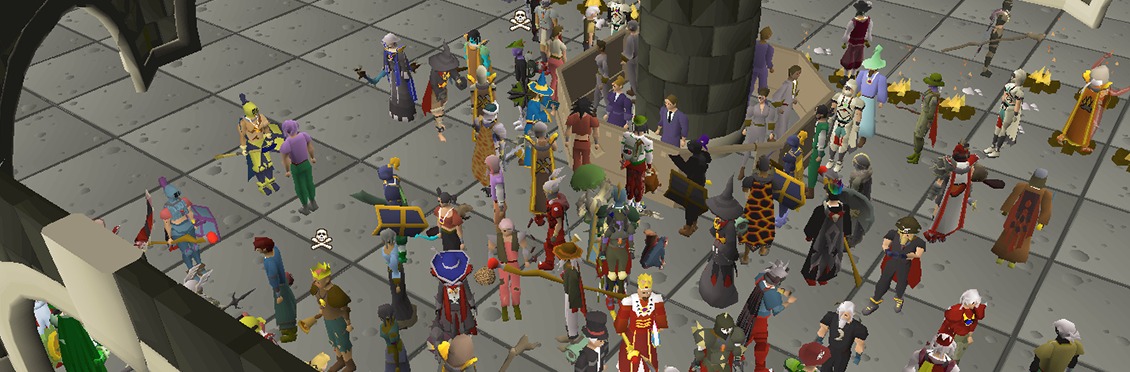
Finding a good flip takes more than looking for a big margin. You also need to know how often an item trades, how much you can buy, and whether your offers are likely to fill in a reasonable amount of time.
For example, a 200 GP margin on an item trading 300 times an hour could make around 60,000 GP an hour from one GE slot. An item with a 2,500 GP margin might look better, but if it only trades a few times an hour, your GP could be tied up for much longer.
Here's how to find items worth looking at, check the numbers, and keep track of your trades using Radar.
What to look for in a flip
There are four things I check before putting GP into an item:
- Margin after tax. The difference between your buy and sell prices after the 2% Grand Exchange tax. Radar accounts for tax when displaying margins, so a 200 GP margin means you'll keep 200 GP per item if you buy and sell at those prices.
- Trading volume. Check how many items are trading on each side. Buy offers fill when other players sell into them. Sell offers fill when other players buy from them. An item can have plenty of activity on one side and very little on the other.
- Buy limit. Each item has a limit on how many you can buy every four hours. This affects how much you can make from a single cycle and how much GP you'll need.
- Fill time. Consider how long your offers might take to complete. A smaller margin on an item that trades regularly can be a better use of a GE slot than a large margin that takes hours to fill.
GE tax is 2% of the sale price, rounded down per item and capped at 5,000,000 GP per item. It's worth accounting for this before deciding whether a margin is worth taking.
Step 1: Find items with the Market Screener
The Market Screener is a good place to start if you don't already have an item in mind.
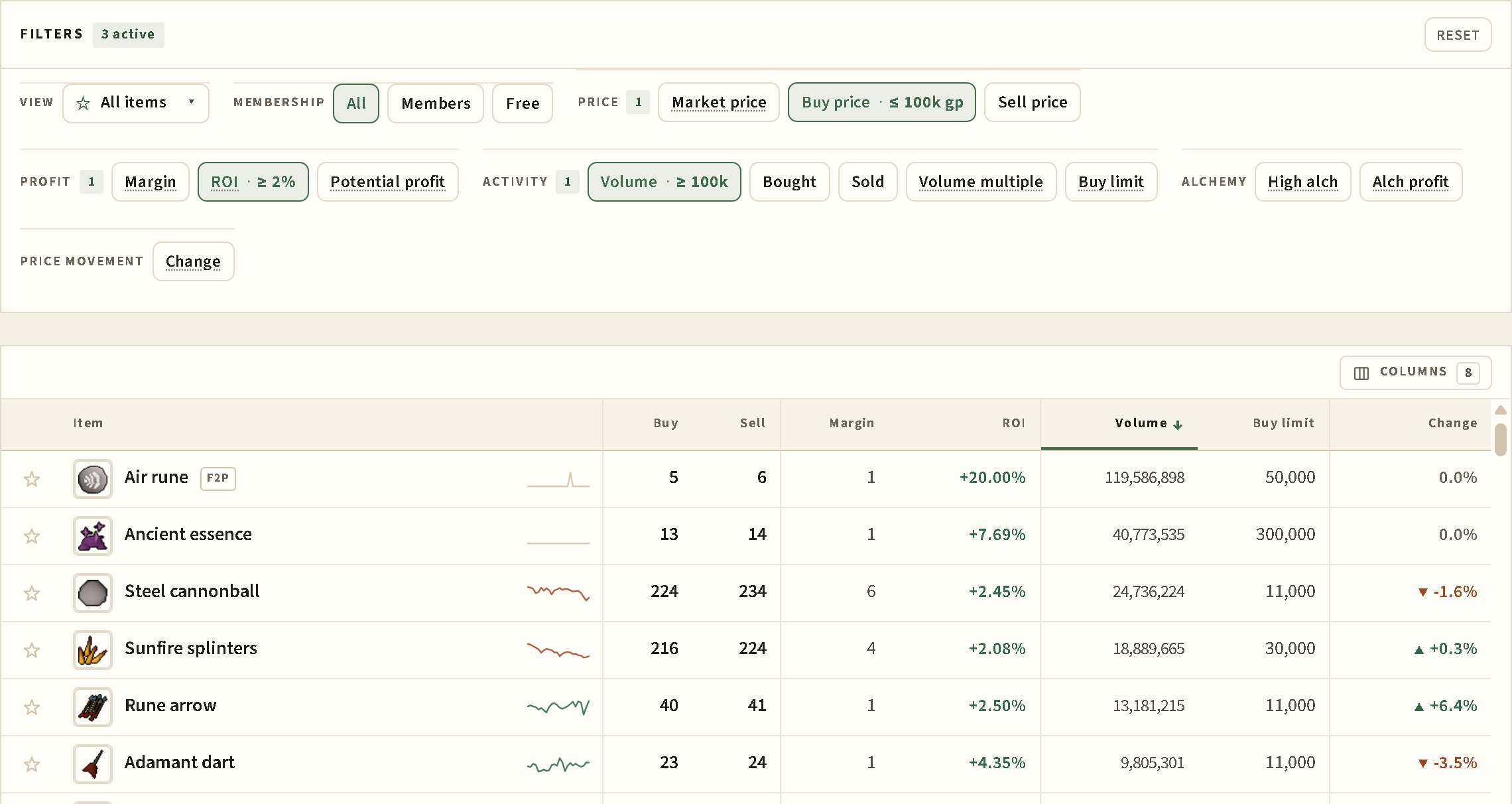
It shows priced Grand Exchange items with their latest buy price, sell price, margin, and trading volume. You can narrow down the results using filters for:
- Margin. Find items within a GP margin range.
- ROI. Compare the margin against the item's buy price.
- Potential profit. See what an item could make based on its buy limit.
- Volume. Filter by how much an item has traded.
- Volume multiple. Compare the current volume window against the previous one to find items that have become more active.
- Buy limit. Focus on items that can support the size of trade you're planning.
You can also change the time window. An item might have plenty of volume over 24 hours but very little activity in the last hour. Checking different windows helps put those numbers into context.
If you already know what kind of items you want to trade, you can browse items by category. Categories include potions, runes, weapons, armour, food, resources, and more.
Step 2: Check the item's price and trading activity
Once you've found an item, open its page before placing an offer. This is where you can get a better look at its recent prices and trading activity.
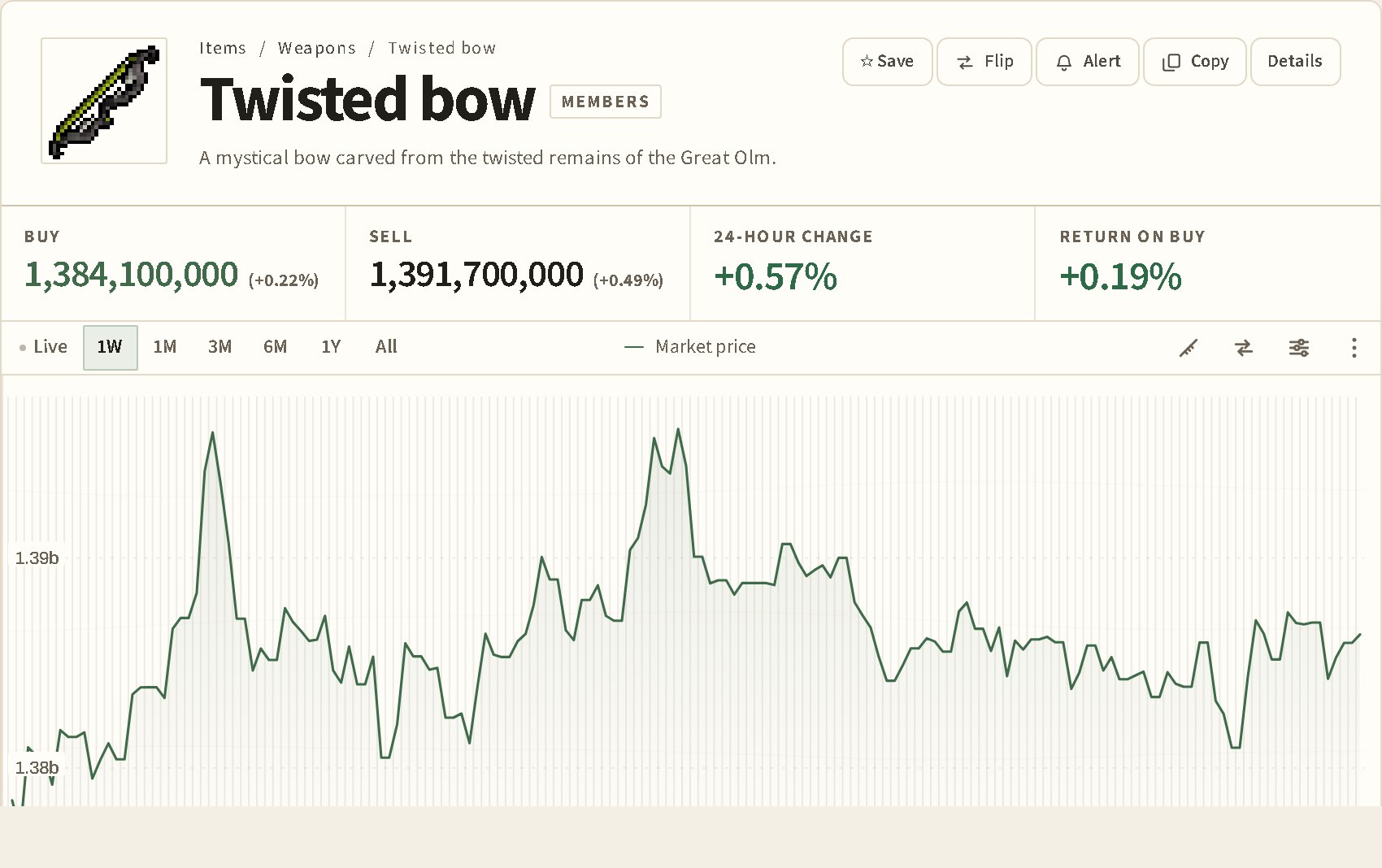
Some of the numbers worth checking are:
- Buy and sell price. The latest prices on each side of the GE.
- Margin and ROI. Your potential profit per item after tax, and the return compared to your buy price.
- 1-hour and 24-hour volume. How much has traded over each period.
- Buy limit. How many you can purchase every four hours.
- Profit per buy limit. What a full buy limit could make at the current margin.
- Cost to fill. How much GP you'd need to buy a full limit.
- Price change. How much the item's price has moved over the selected period.
- Fill estimate. An estimate of how long it could take to fill a given quantity based on recent trading activity.
The item page also includes historical daily prices, high alchemy value, and whether the item is free-to-play or members-only.
Check volume on both sides
Volume is important, but the total number of items traded doesn't tell you everything.
If you're placing a buy offer, you're waiting for other players to sell into your price. If you're placing a sell offer, you're waiting for players to buy from you.
A large spread can look attractive, but if there's very little activity on one side, you might be waiting a while for your offer to fill.
Radar's market pressure reading and fill estimate give you more to work with when checking an item. Use them alongside the margin and volume rather than relying on the spread alone.
Compare the margin with the time it takes to fill
Consider these two examples:
| Measure | Item A | Item B |
|---|---|---|
| Net margin | 200 GP | 2,500 GP |
| Volume per hour | 300 | 4 |
| Estimated profit per hour | 60,000 GP | 10,000 GP |
Item B has a much bigger margin, but Item A could make more GP over the same period because it trades more often.
These are simplified examples, not guaranteed profits. Actual results depend on your offer prices, how much volume is available, and whether the market changes while you're waiting.
Step 3: Build a plan with the Flip Optimizer
If you have a cash stack and aren't sure what to buy, the Flip Optimizer can put together a list of items based on your budget and available GE slots.
You'll need to enter:
- Cash to spend. How much GP you want to put toward your flips.
- GE slots. How many slots you want to use.
- Membership. Choose between all items, members-only, or free-to-play items.
- Fill strategy. Choose how you want the optimizer to allocate your GP.
There are three fill strategies:
- Max Profit. Uses the budget on the item with the highest estimated profit.
- Balanced. Spreads the budget across multiple items, with limits on how much goes into each buy.
- Conservative. Uses smaller buys and tighter volume limits, which can leave some GP unused.
The optimizer returns a buy list showing the items, quantities, costs, and estimated profit after tax.
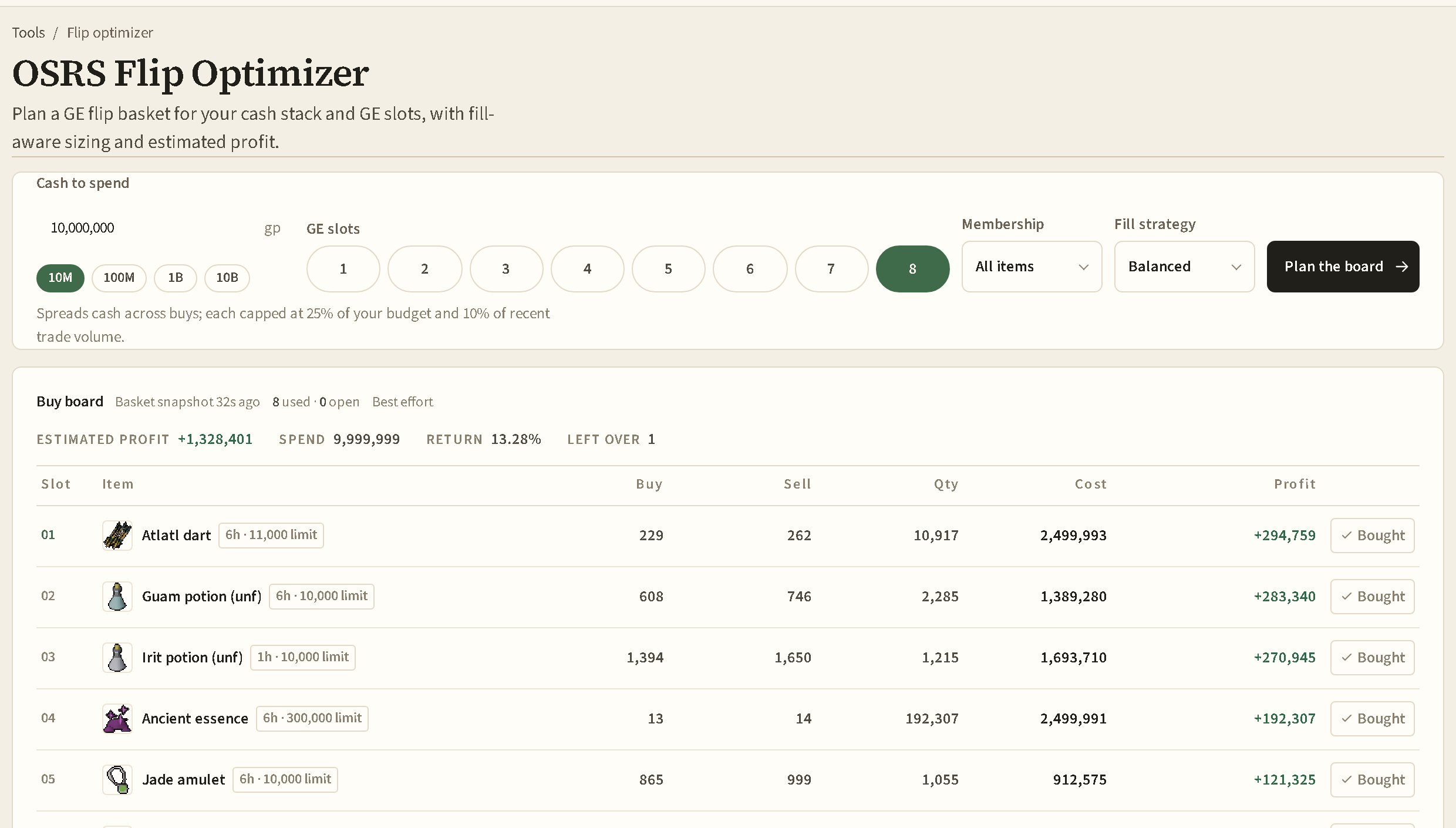
When an order fills in-game, press Bought on that row. The optimizer removes it from the plan and recalculates using the cash you have left.
You can adjust the budget and number of slots to see how different plans compare. The optimizer is also available without signing in.
Step 4: Keep track of your items and trades
Finding an item is only part of flipping. You'll also want a way to keep track of what you're watching and what you've actually bought.
Radar has a few tools for this.
Lists
Use Lists to keep items together. Add items you're interested in and check their live GE prices, price changes, and 24-hour volume in one place.
You could have one list for your regular flips, another for items you're considering, or even a list of supplies for a skill or boss trip.
Lists are saved to your account, so they're available when you sign in from another browser.
Flip Planner
The Flip Planner lets you record the details of a trade, including the item, quantity, planned buy price, and planned sell price.
As your offers fill, you can keep track of your open and realized profit for each position. It's useful if you're running several flips at once and don't want to keep everything in a spreadsheet.
Your flips are saved to your account, so you can come back to them later.
Alerts
You can also set up alerts for items you're watching. Set a price level and Radar checks it against incoming price quotes every minute.
When an alert triggers, Radar records the item, the price that crossed your level, and when it happened. You can also create an alert directly from an item's page.
This is useful when you're waiting for an item to reach a certain price instead of checking it manually throughout the day.
Step 5: Place your offers and check back
Once you've chosen an item, place your buy offer. You may need to offer slightly more than the current buy price to get ahead of other players waiting in the queue.
When the offer fills, place your sell offer around the current sell price. Check the item's price and trading activity again if the offer isn't filling.
Prices can change while your GP is tied up in an offer. Before lowering your sell price, work out your break-even point.
Your sale price after tax needs to be higher than what you paid. If the market has moved below that point, selling immediately could turn the flip into a loss.
You don't have to stick with an item just because you started trading it. If the spread has closed or volume has dried up, it might be time to look at something else.
Other useful calculators
Flipping isn't the only way to make GP, and some items have other uses worth checking before you trade them.
Radar has a few calculators that can help:
- GE Tax Calculator. Work out the tax on a sale and see how much GP you'll keep.
- High Alch Calculator. Compare an item's GE price with its high alchemy value and the cost of a nature rune.
- Skill Calculators. Work out the XP and materials needed to reach your next skill goal.
- Combat Level Calculator. Calculate your combat level based on your stats.
Questions about OSRS flipping
How does GE tax affect my profit?
The Grand Exchange charges 2% tax on eligible sales. The tax is rounded down per item and capped at 5,000,000 GP per item.
Radar accounts for this when displaying margins, so the number shown is after tax rather than before it.
What's the difference between flipping and making money through a skill?
Flipping involves buying an item from the Grand Exchange and selling it for a higher price. Your profit comes from the difference between those prices after tax.
Other money-making methods involve doing something to earn GP, such as killing bosses, training a skill, or making items. Radar's calculators can help work out the costs and returns for some of those activities.
Why shouldn't I just pick the item with the biggest margin?
A large margin doesn't necessarily mean you'll make more GP. If an item trades slowly, your offers could take hours to fill.
A smaller margin on an item with more trading activity might give you more opportunities to complete flips. Compare the margin, volume, buy limit, and fill estimate before deciding where to put your GP.
Do I need an account to use Radar?
You can browse Grand Exchange prices, item pages, and use the Flip Optimizer without signing in. Lists, saved flips, and alerts are tied to your account.
Start looking for flips
Open the Market Screener to browse items, or try the Flip Optimizer if you want to build a plan around your cash stack.
Prices and trading activity change, and fill estimates are based on recent data. Use them to compare items and plan your offers, but remember that no estimate can guarantee a trade will fill.